Safe apps for students are apps that collect only the data their features need, ask only for the permissions they actually use, and do not push ads or content unsuitable for their age. Everything you need to check this is already on Google Play and in your phone’s Settings. This guide shows students and parents how to check an app in a few minutes before installing, and how to review apps already on the phone.
Check Google Play before installing
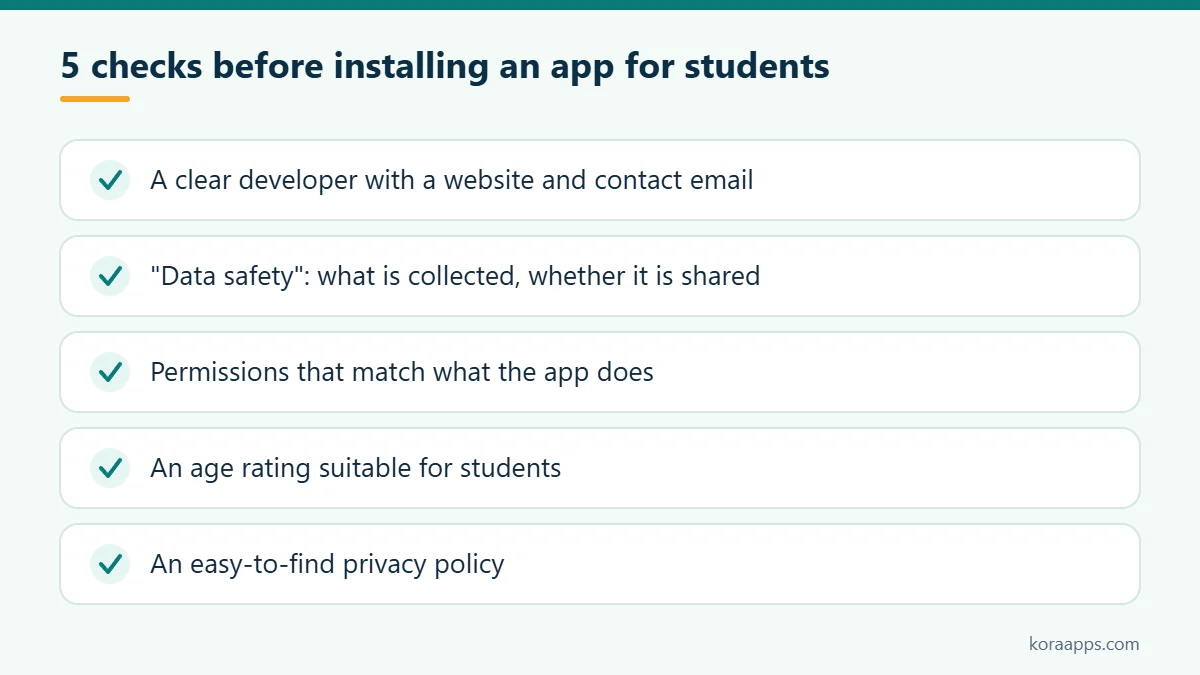
- Developer: scroll to the bottom of the app page and look at the developer name, website and contact email. Be cautious with apps that have no clear contact details.
- Data safety: declared by the developer: what data the app collects, whether it shares it with third parties, whether data is encrypted in transit and whether you can ask for it to be deleted.
- Permissions: listed under About this app.
- Age rating: check which age group the app is rated for.
- Privacy policy: there must be a working link you can read, for example the KORA APPS privacy policy.
Which permissions are reasonable and which are suspicious
The rule is simple: permissions must match what the app does. A photo solver needing the camera is reasonable; a calculator asking to read your contacts or messages is not.
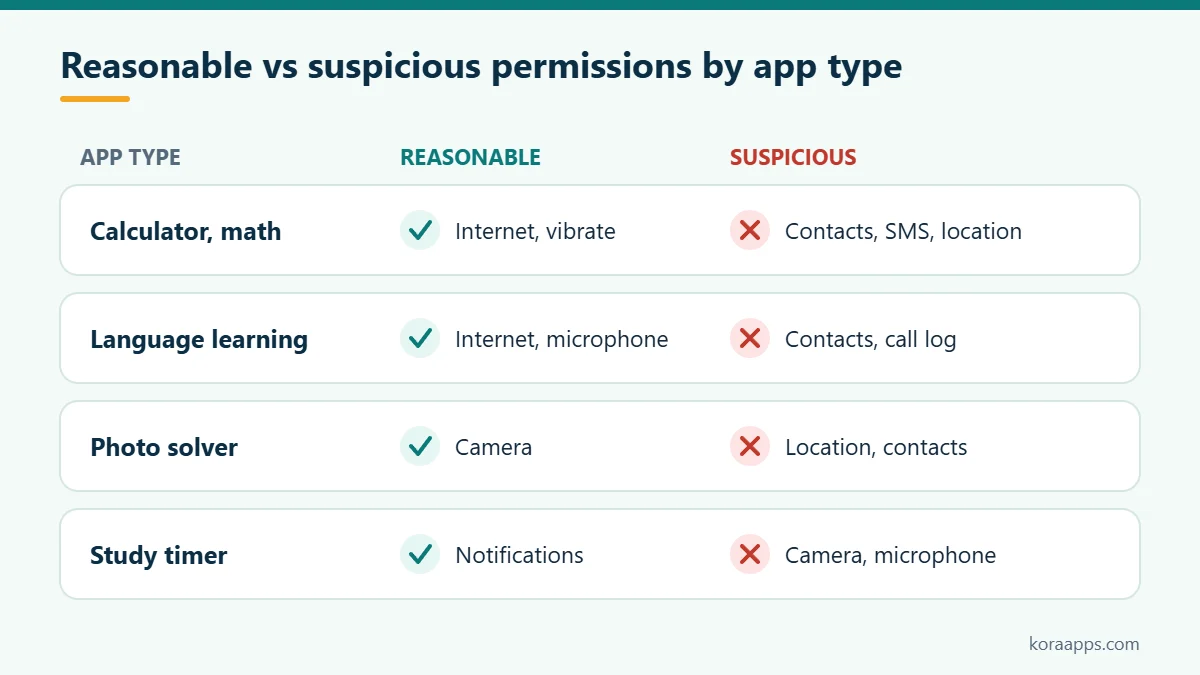
A real example: Giải Nhanh uses only the Internet permission to check for updates and Vibrate for key feedback; it does not access the camera, microphone, location, contacts or storage. That is the level of access to expect from a calculator app.
Review permissions for installed apps
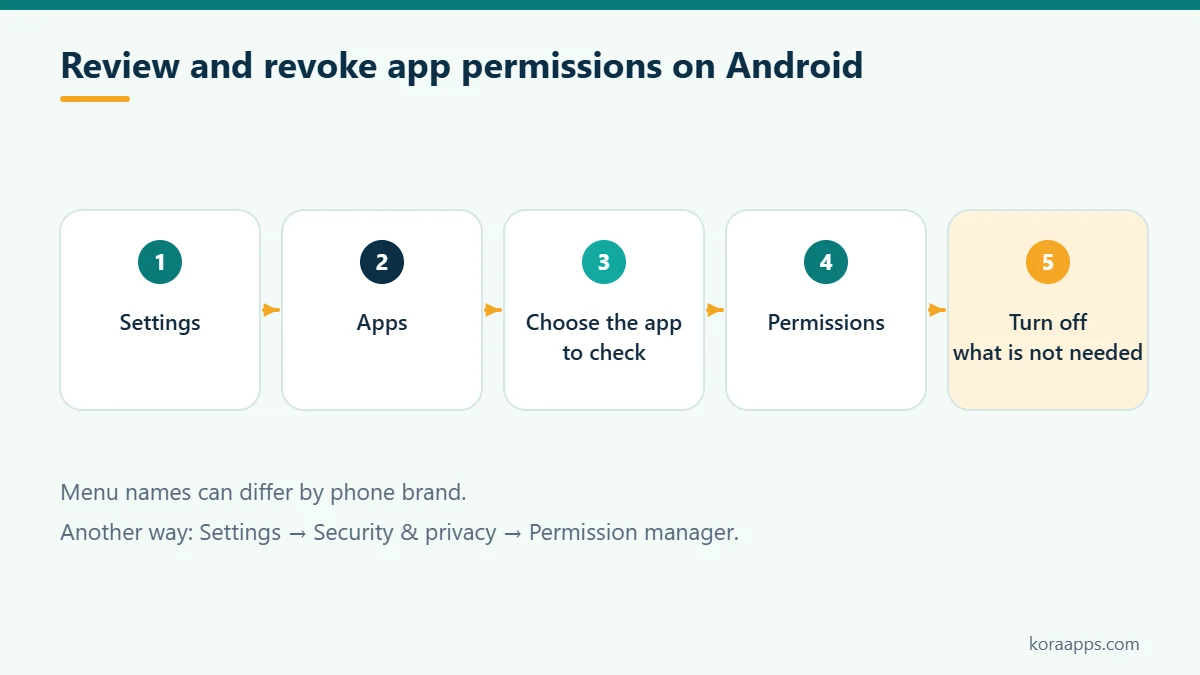
Open Settings → Apps → choose the app → Permissions, and turn off anything unrelated to how you use the app. Android also has a Permission manager to view by group, for example every app using your location. For the camera, microphone and location, choose “Allow only while using the app” instead of “Allow all the time”.
Signs an app is not safe
- It asks for permissions unrelated to its purpose (contacts, SMS, call log).
- Full-screen ads keep popping up, are hard to close and lead to strange websites.
- It demands sign-in with a phone number or social account even though its features do not need one.
- It is installed from an APK file on the web rather than from Google Play.
- It has no privacy policy, or only a few vague lines.
For parents: Google Family Link
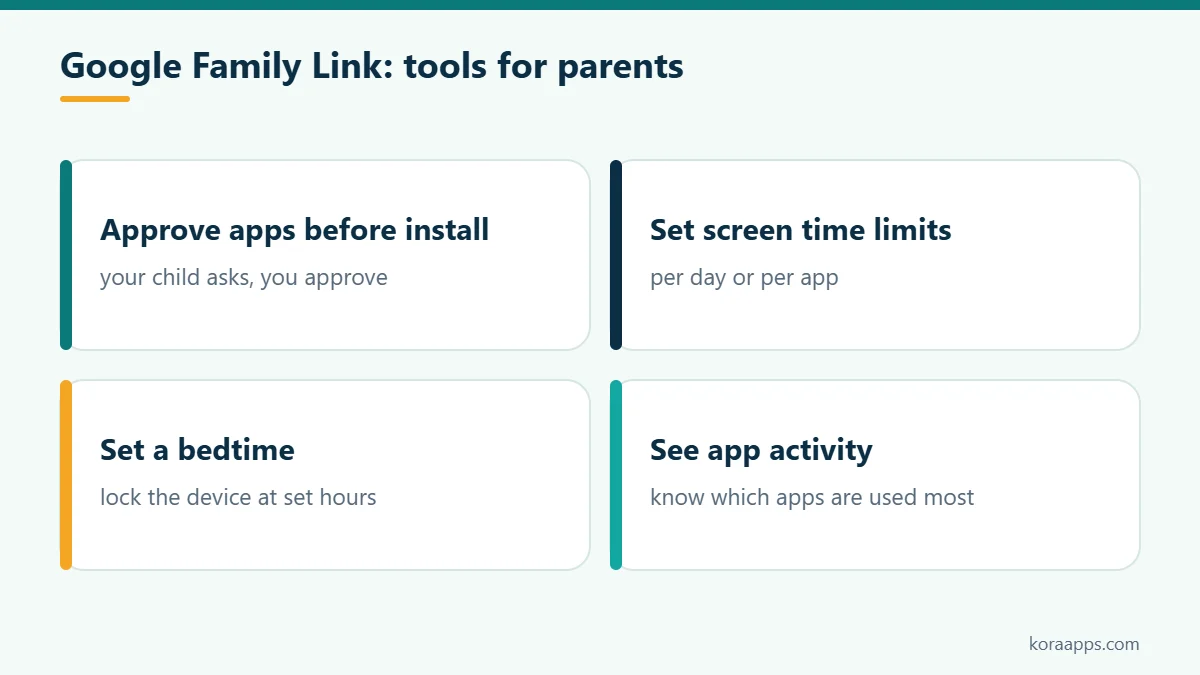
Family Link is a free Google app that lets parents approve apps their child wants to install, set screen time limits and a device bedtime. The most effective approach is not to block everything, but to look at the Data safety section of a new app together and explain why a permission is unnecessary. If your child studies on their phone, see also focus apps for studying.
Conclusion
A safe study app has a clear developer, transparent data declarations and asks only for the permissions it really uses. If you are a student, take a minute to read the Data safety section and the permission list before tapping Install; if you are a parent, use Family Link to approve new apps and review the permissions of installed apps every few months.
Frequently asked questions
Can I trust the Data safety section on Google Play?
It is information declared by the developer, who is responsible for it. Read it together with the permission list and privacy policy to cross-check.
Will revoking a permission break the app?
Usually not; features that do not need it keep working. If the app needs it later, it will ask again and you can grant it.
Should students install apps from APK files?
No. Apps outside Google Play skip the store’s checks and may be modified or contain malware.
Can children under 13 use study apps?
Yes, if the app suits their age and a parent agrees. Many apps require users to be 13 or older, so check each app’s terms.